Resume installed: first-hour checklist
You installed OpenResume Builder. The next hour is about proving a local document profile exports cleanly, not about redesigning your entire career story. Follow these eight moves, then stop while the win is still fresh.
1. Confirm which binary you launched
Check that you opened the Setup install, Portable exe, macOS app, or AppImage you intended. If two copies exist, quit both and relaunch the documented door. Write the filename on the machine ticket beside the OS version.
2. Create one master document profile
Use New in the profile dropdown. Name it Master or your primary role family. Confirm the autosave indicator moves from Saving to All changes saved after a short edit. Do not duplicate yet.
3. Pick a template once
Open the template gallery and choose Classic, Modern, or Resumatic. Live thumbnails help, but commit for the first hour. Template hopping before content exists wastes the editing session.
4. Fill a thin Experience entry
Add one job with dates and two bullets. Use bold/italic and a simple list to confirm formatting works. Month/year pickers and Present should behave as the README describes; if a control fails, note it for upstream issues.
5. Export PDF
Export PDF and open it in a viewer. Check margins, bullets, and links. This is the primary resume proof for most applications.
6. Export plain text for ATS
Export .txt and skim it in Notepad or similar. Plain text is the ATS-safe resume format when portals reject designed PDFs. Keep both files in a dated folder.
7. Save JSON and a named snapshot
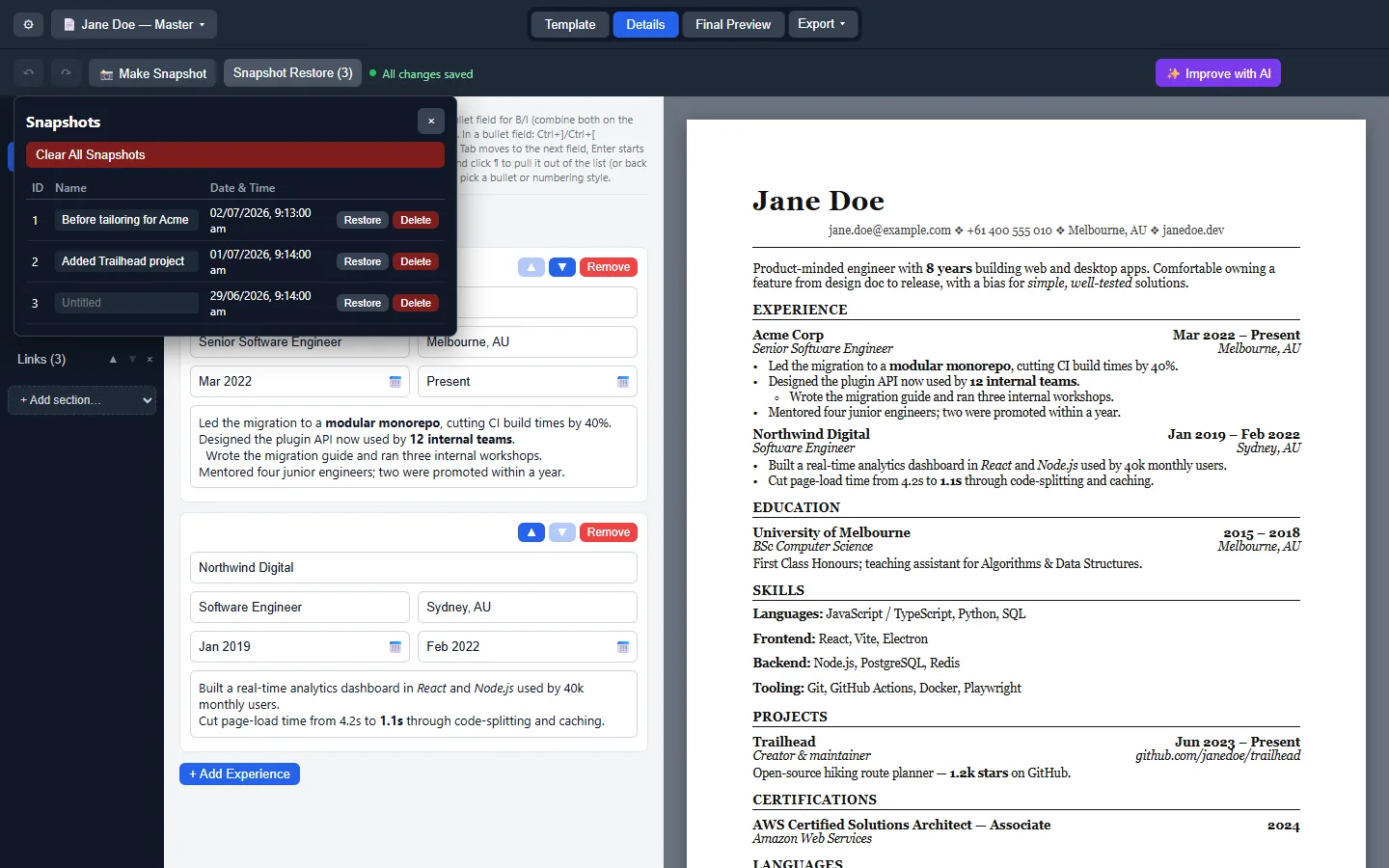
File → Save As writes a portable .json. Take a named snapshot before risky edits. Snapshots and JSON together are your recovery story without a cloud account.
8. Set theme and update habits
Optional: set System/Light/Dark in Settings. Bookmark GitHub Releases or remember winget upgrade for the next bump. Skip adware “update helpers.”
OS-specific reminders
- Windows: SmartScreen may appear on first launch of unsigned builds; confirm Releases/winget first.
- macOS: Gatekeeper may need right-click Open; brew was not found.
- Linux: AppImage may need libfuse2 or extract-and-run.
Deeper guides: first run, profiles and templates, exports, ATS plain text, update uninstall.
What can wait until tomorrow
Duplicating five tailored resume copies, rebuilding Canva artboards pixel-for-pixel, and chasing dark-mode screenshots can wait. The first hour succeeds when one profile, one PDF, one plain-text file, and one JSON backup exist on disk you control.
If something fails, capture the OS, filename, and error text. Upstream issues belong on the GitHub repo; install-guide corrections belong with Sheet Quill via the contact page.
Optional Word export
After PDF and plain text work, try .docx export if a recruiter demands Word. Confirm bold/italic and lists survived. Then stop for the day while the document path is still simple.
Duplicate profiles after the smoke test
Only after PDF, plain text, JSON, and a snapshot exist should you Duplicate the master resume for a tailored application. Rename copies with the employer or role, not with vague labels like new2. Keep the master clean so future duplicates start from trusted content.
If you still keep a Canva or Word file, mark it Reference only on the desktop so you do not edit the wrong surface during a deadline. The local OpenResume Builder profile is the working resume once the first-hour checklist passes.
End the hour by writing three lines on the machine ticket: filename or winget id, folder for JSON backups, and the Releases URL. That boring card saves the next person from inventing a brew cask that does not exist.
Integrity habits after hour one
Refuse Setup files from chat without a Releases URL. Refuse brew commands for this desktop client. Refuse second download portals when SmartScreen scares you. Boredom is the security model: same door, same proof export, same backup folder every week.
When the first hour ends, you should have a master document profile, a PDF, a plain-text file, a JSON backup, and a written update door. That set beats a perfect visual redesign that never exported cleanly.